


WINDOWS CLIENT
CyberFly Windows Tutorial
Download → install → connect · ~5 minutes
1Before you install
Uninstall other VPN / proxy apps first to avoid conflicts.
⚠️ Note: Read this guide carefully — a wrong setup can cause failed connects or slow speeds.
3Install
Run the installer:
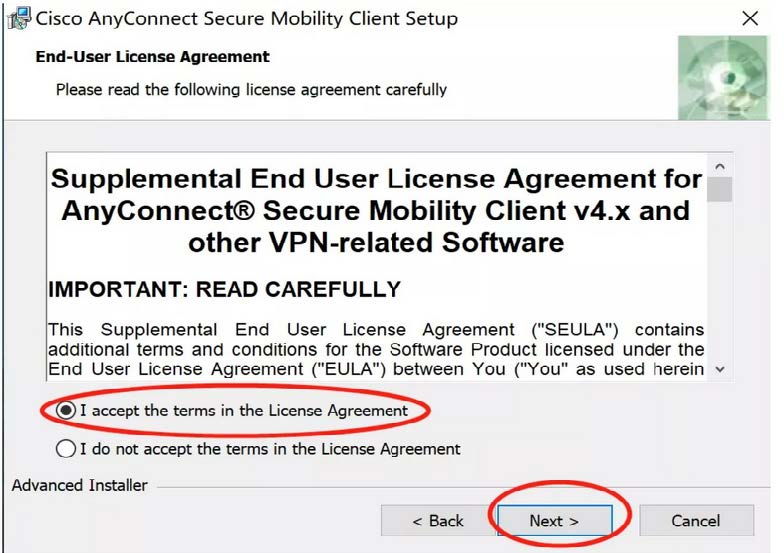
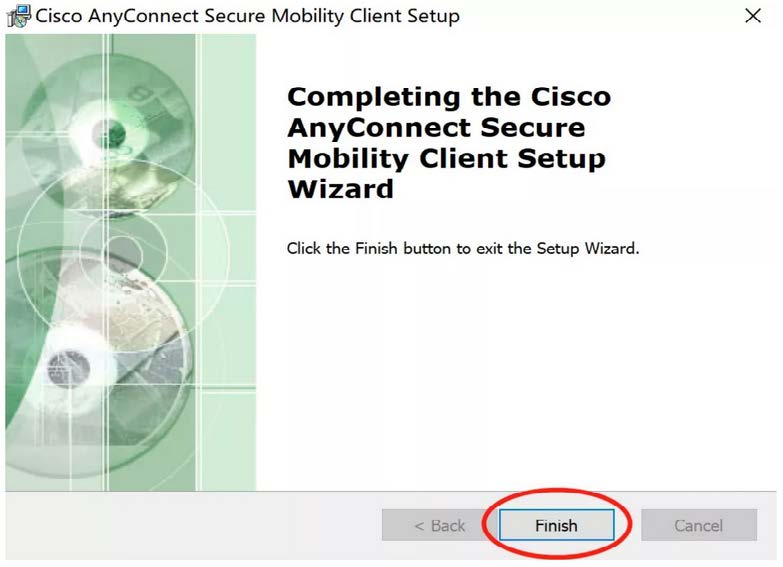
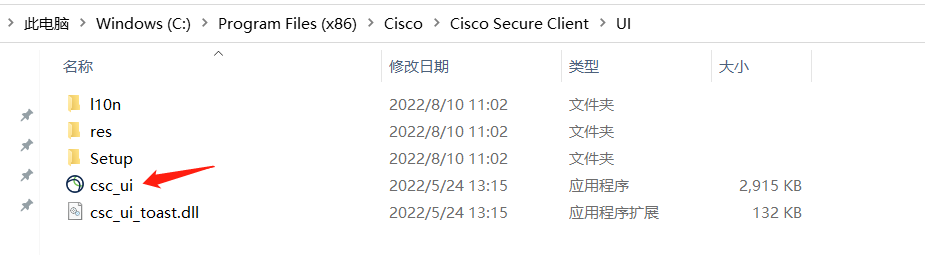
No desktop shortcut by default. Launch from Start → Cisco, or:
Win10/11: C:\\Program Files (x86)\\Cisco\\Cisco Secure Client\\UI → csc_ui.exe
Win7: C:\\Program Files\\Cisco\\Cisco AnyConnect Secure Mobility Client → vpnui.exe
4Import nodes
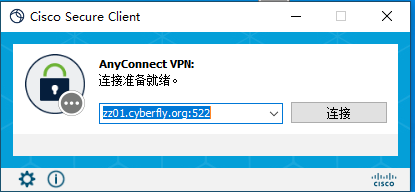
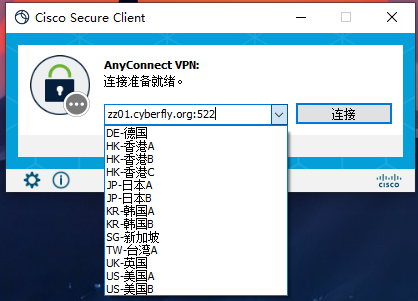
Enter zz01.cyberfly.org:522, connect with your email and AnyConnect password, then Accept.
Tips
✔ Remove conflicting proxies first
✔ Include port :522
✔ Email + AnyConnect password
✔ Use download.cyberfly.org if direct links fail