MACOS NEW CLIENT
CyberFly Mac New Client Tutorial
From download & installation to a successful connection · about 5 minutes
1Software Overview
Before installing, please uninstall any other proxy/VPN clients to avoid compatibility issues. The new client comes with a built-in connection core — there is no need to install Cisco AnyConnect separately. Simply download and use.
The client offers two login methods, each using different credentials:
Method 1 · Website account login:Use the email address and password you use to sign in to the official website (User Center). The client will automatically fetch and use the AnyConnect account included in your subscription to connect.
Method 2 · AnyConnect account login:Use your subscription's AnyConnect account and the product password you were required to enter when purchasing the subscription. The product password is different from the website login password.
The client offers two line types — Relay and Direct. Choose according to your network environment:
Relay:A high-speed line with low latency and fast speeds, available only within mainland China network environments — it cannot be connected from other regions.
Direct:A dedicated line for users outside mainland China, which also serves as an emergency backup line when the Relay line is not working properly.
Note:Do not mix up the two login methods or the two line types. Entering the wrong credentials will cause login failures; incorrect configuration may cause connection failures or reduced speeds.
2Software Download
macOS Installer (DMG)
Official direct link · Drag-and-drop installation · Apple Silicon (arm64) build
Download Installer
3Software Installation
Double-click the downloaded DMG file and drag Cyberfly.app into the Applications folder on the right to complete the installation:
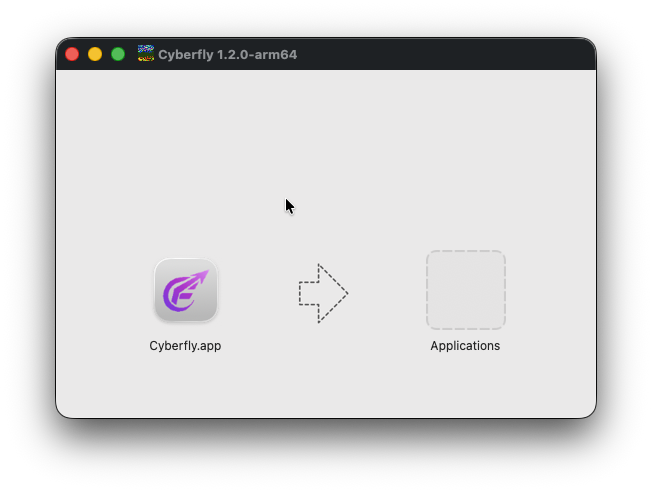
Once installed, open Cyberfly from Launchpad or the Applications folder. On first launch you must complete a one-time security setting — continue to the next step.
4First Launch: Allow the App to Run
The first time you open Cyberfly, macOS will show a warning such as "'Cyberfly' cannot be opened because Apple cannot check it for malicious software" and temporarily block the app. This is a normal macOS security mechanism — follow the steps below to allow it:
Steps
① Click the Apple menu in the top-left corner of the screen and choose "System Settings";
② Select "Privacy & Security" in the left sidebar;
③ Scroll down to the Security section — you will see a message saying "'Cyberfly' was blocked from use to protect your Mac";
④ Click "Open Anyway", then click "Open" again in the confirmation dialog. The client will now launch normally.
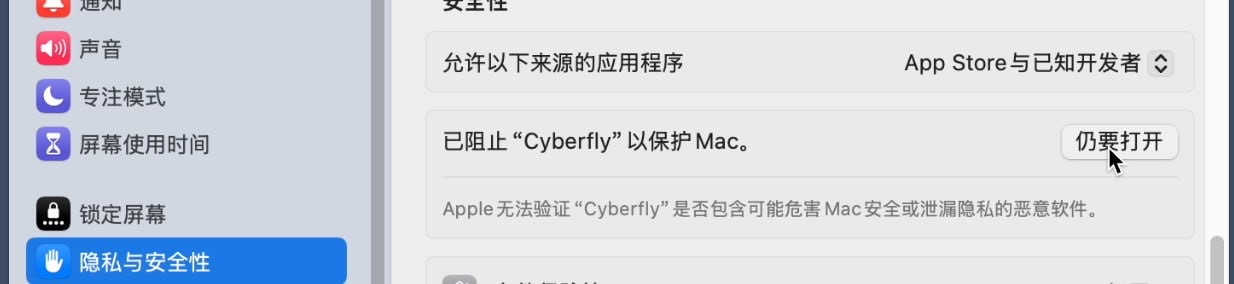
Note:If the "Open Anyway" button does not appear in the Security section, open Cyberfly once more from the Applications folder, then return to this page and check again. This setting is only required once, on the very first launch — afterwards the app will open normally.
5Log in to the Client (choose either method)
After launching the client you will land on the login page. The two login methods use different credentials — pick the one that applies to you:
Method 1: Log in with your website account
The email and password you enter are the same ones you use to sign in to the official website (User Center). After a successful login, the client will automatically fetch and use the AnyConnect account included in your subscription — no manual entry required.
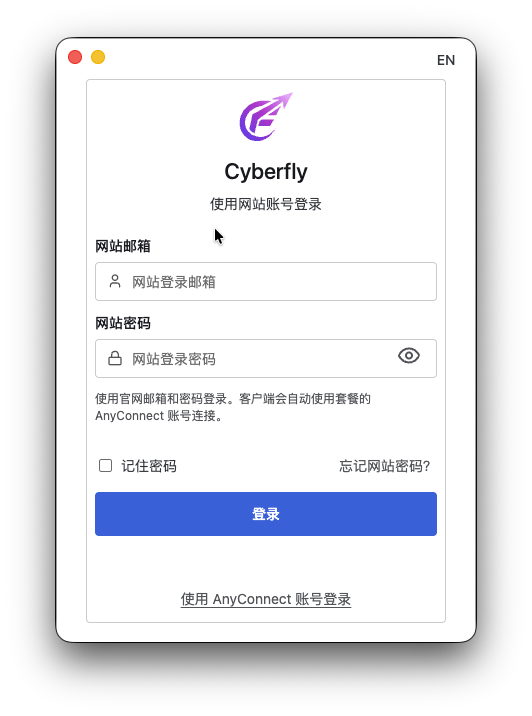
Method 2: Log in with your AnyConnect account
Click "Log in with AnyConnect account" at the bottom of the login page to switch modes. For the username, enter your subscription's AnyConnect account; for the password, enter the product password you were required to set when purchasing the subscription. The product password is different from the website login password — do not mix them up.
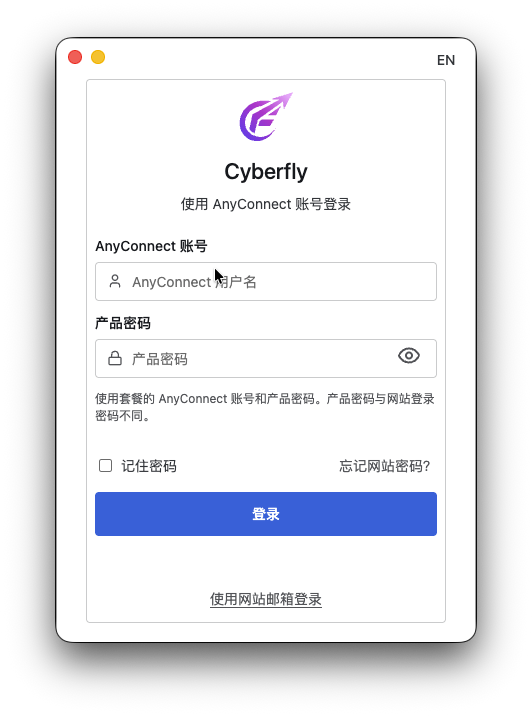
Your AnyConnect account can be viewed on the website's subscription details page (https://www.cyberfly.org/clientarea.php?action=productdetails&id=115714).
Note:Website login uses your website password; AnyConnect login uses the product password — the two cannot be interchanged. If one method fails, try the other.
6Select a Line and Connect
After logging in you will reach the home page. First select a line (Relay or Direct — see Step 1 for the differences), then pick a node from the dropdown and click "Connect" (the interface language can be switched between Chinese/English via the top-right corner):
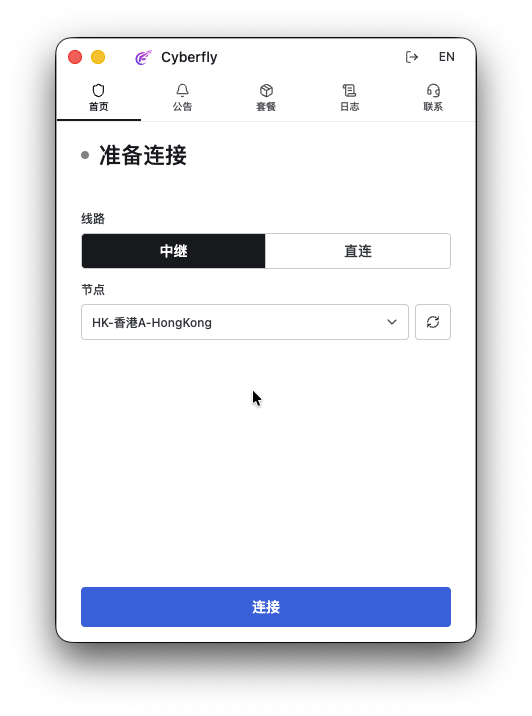
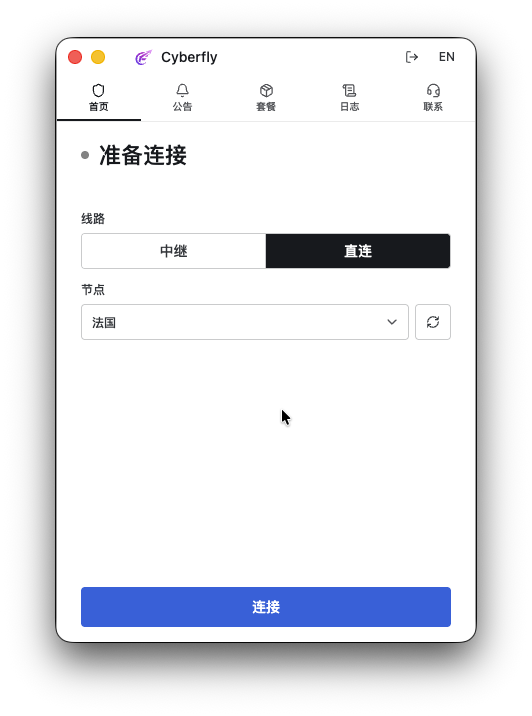
The two lines can be switched freely at any time; click the refresh button to the right of the node box to update the node list:
On the first connection, the system will ask for administrator privileges to create the VPN interface (utun). Enter your Mac's administrator (login) password and click OK:
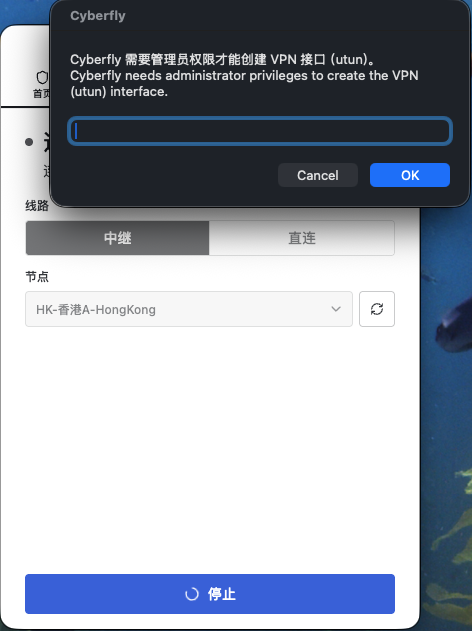
Note:Grant the app all requested permissions, otherwise it may fail to connect or work properly. Once connected, the button changes to "Stop" — click it again to disconnect.
7Subscription Management: Renewal & Traffic Reset
Open the "Subscription" tab at the top to view your current subscription, its status, expiry date, used and remaining traffic, and the next traffic reset date, as well as to renew or reset your traffic. Your AnyConnect account can also be viewed on the website's subscription details page (https://www.cyberfly.org/clientarea.php?action=productdetails&id=115714).
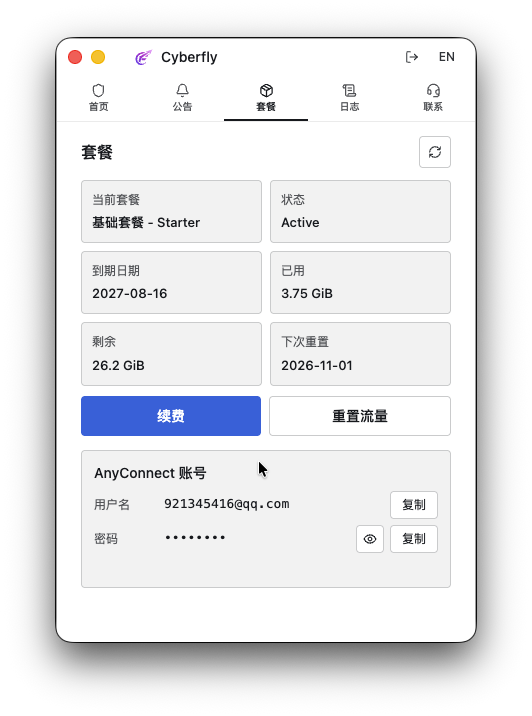
Renewing your subscription
If your subscription has expired and you want to keep using the service, click "Renew". The client will automatically open the official renewal page in your system's default browser — complete the payment there, and the subscription will be renewed automatically.
Resetting your traffic
"Reset traffic" is only available after the current period's traffic has been fully used up. Clicking it opens a confirmation dialog. Resetting traffic requires a fee — the exact amount is shown in the dialog — and your traffic is restored immediately after you confirm. If you're not in a hurry, you can also wait for the automatic reset on the "next reset" date shown on the subscription page.
Note:Traffic cannot be reset before it is used up; resetting is a paid action — confirm the amount in the dialog before paying.
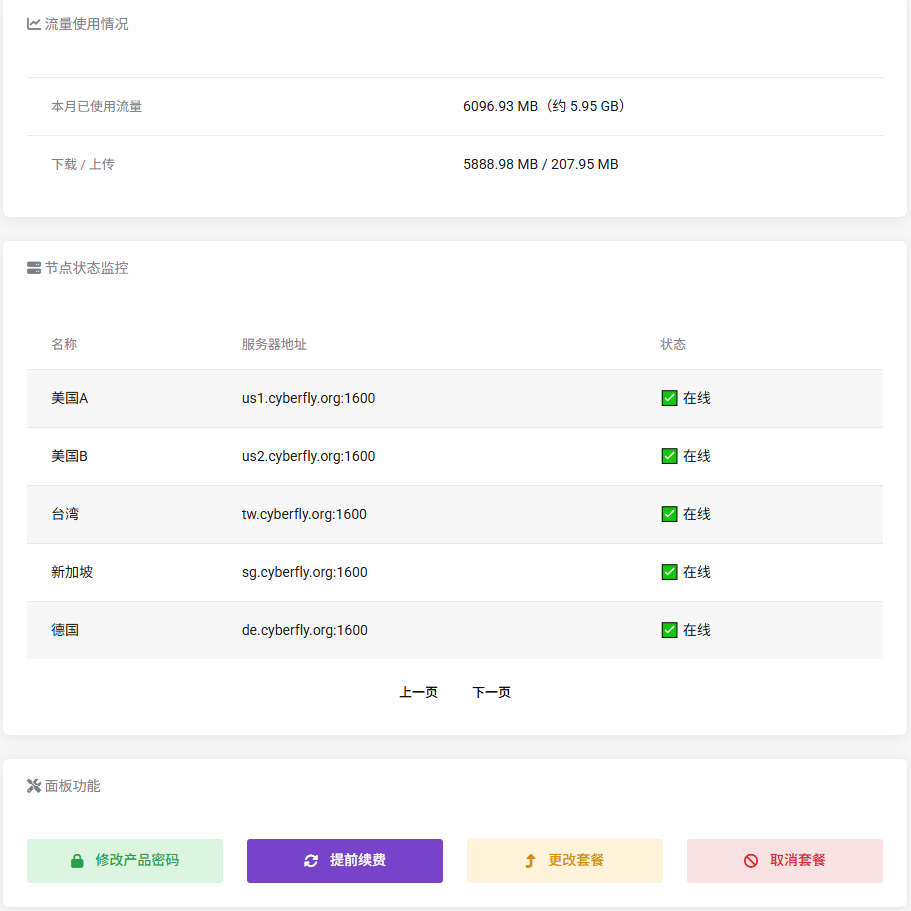
Go to the User Center to check your traffic
Helpful Tips
√ On first launch, click "Open Anyway" under Privacy & Security
√ Relay is for mainland China networks only
√ Direct is for non-mainland users & as a backup
√ Renewals are completed in the default browser
√ Traffic can only be reset after it runs out
√ Website login uses your website email & password
√ AnyConnect login uses the product password